

Welcome teamleader
To ensure a smooth start to the TeamChallenge, we recommend following the onboarding process below step by step.
Only after that can you begin the challenge.
Need help? Don’t hesitate to contact me.
Good luck!
Carine

Onboarding process
Your profile
- Working out together is even more fun when everyone has a recognizable profile.
- So be sure to add a profile photo and a cover photo to keep communication smooth within your group.
- To do that, click your Profile Name in the menu bar, then select Profile > View.
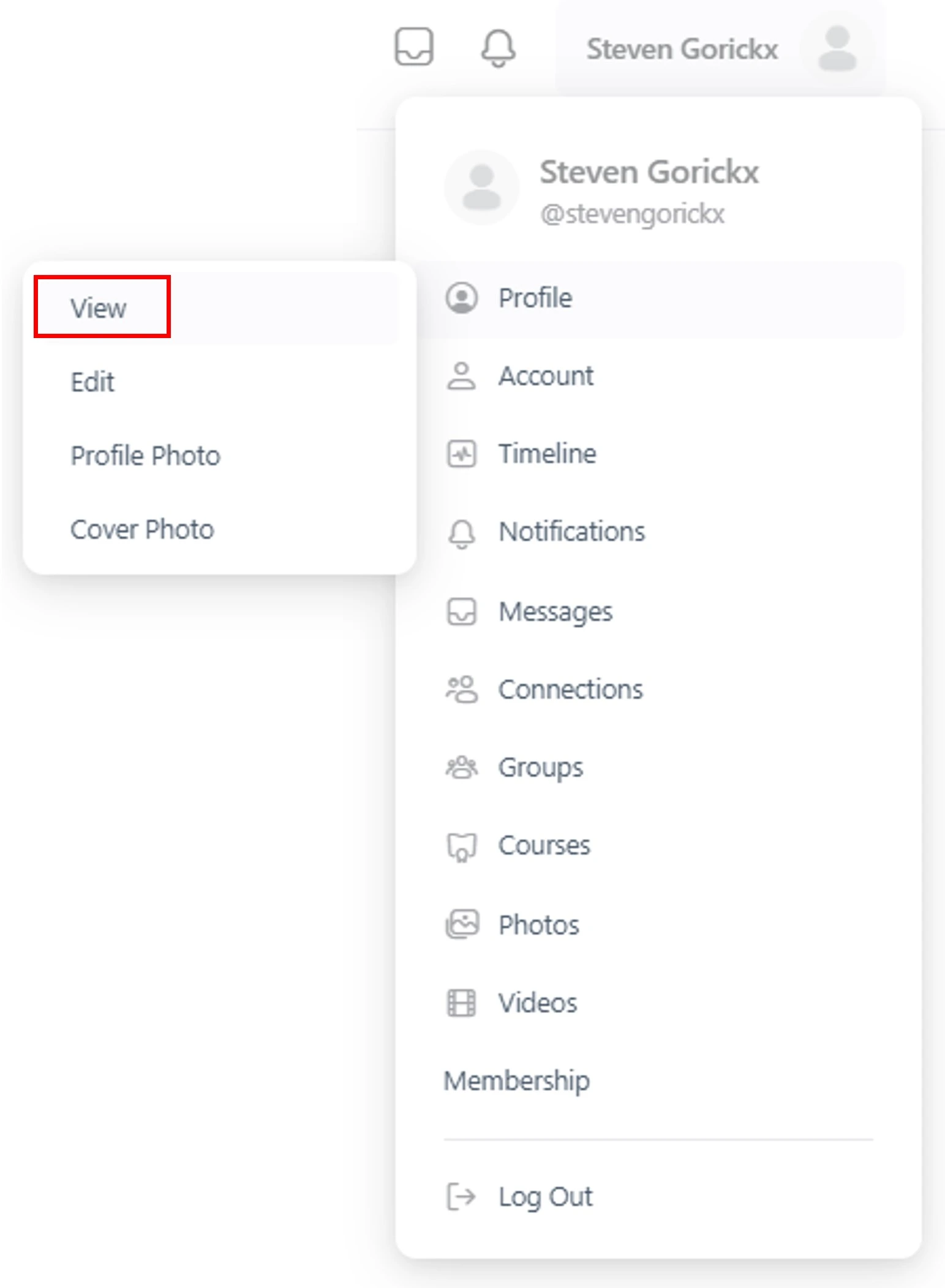
- Click the empty boxes on your profile page to add photos. You’ll instantly see whether your profile is up to date.
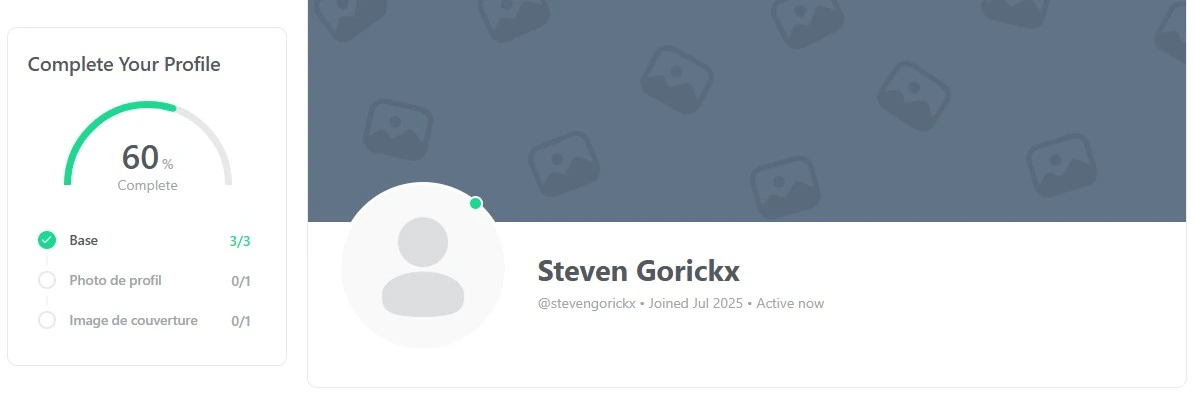
- Once your profile is fully updated, the percentage indicator will automatically disappear.

Important for GDPR
Your data will not be shared with third parties. After the event, you can delete your account yourself via the profile menu. This will permanently erase all your information from our database..
Announcement
Announce this unique TeamChallenge first, and clearly explain its purpose and structure. Experience shows that the most impact is made when the explanation is given live during an (online) meeting, followed by a confirmation email.
Need inspiration?
We’ve prepared an email template that you’re free to copy and adapt.
Sneak peek
Want to give your team a preview of what’s coming? Show them the sample video or share the link below:
Important:
Your TeamChallenge subscription will automatically expire after one year. So make sure to complete the challenge within that time.
Registrations
There are several ways to add participants to the TeamChallenge. For larger teams, the most efficient method is uploading a participant list. Here’s how:
- Gather the email address, first name, and last name of each participant.
- To ensure a smooth upload, create an Excel file using exactly the following column headers:
- username
- first_name
- last_name
- Based on experience, using the email address as the username makes the participant registration process much smoother. Simply copy each email address into the “username” column of your Excel sheet.
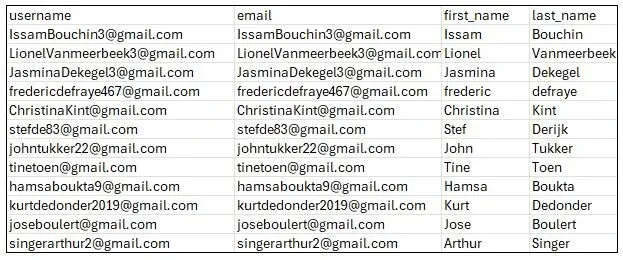
You can upload up to 200 participants at once to the TeamChallenge platform. If your group exceeds this number, simply split them into multiple lists and upload each one separately.
- Once you’ve finished preparing the list, save it as a CSV file (Comma delimited).
- Go to File > Save As. In the dropdown menu, select CSV (Comma delimited) (.csv)*.
- Important: Other file formats will trigger an error when uploading!

Important for GDPR Compliance
Participant data is never shared with third parties. After the challenge, users can delete their account via their profile menu, which will permanently erase all personal data from the database.
Important for Security
Some internal policies may restrict the use of corporate accounts or workstations for personal activities. In such cases, participants are welcome to use a private email address and log in from a personal device.
Start the Challenge
As a team leader, you manage the Primary Account and add participants via Subaccounts.
Important when adding participants
- As soon as you add someone, a welcome email is automatically sent and their 21-day challenge begins right away.
- Be mindful of when you do this. Choose the day and time deliberately.
- Inform your participants in advance so they know to check their inbox.
Adding Participants
- Click your Profile Name in the menu bar.
- In the profile menu, select Membership, then click Subscriptions.
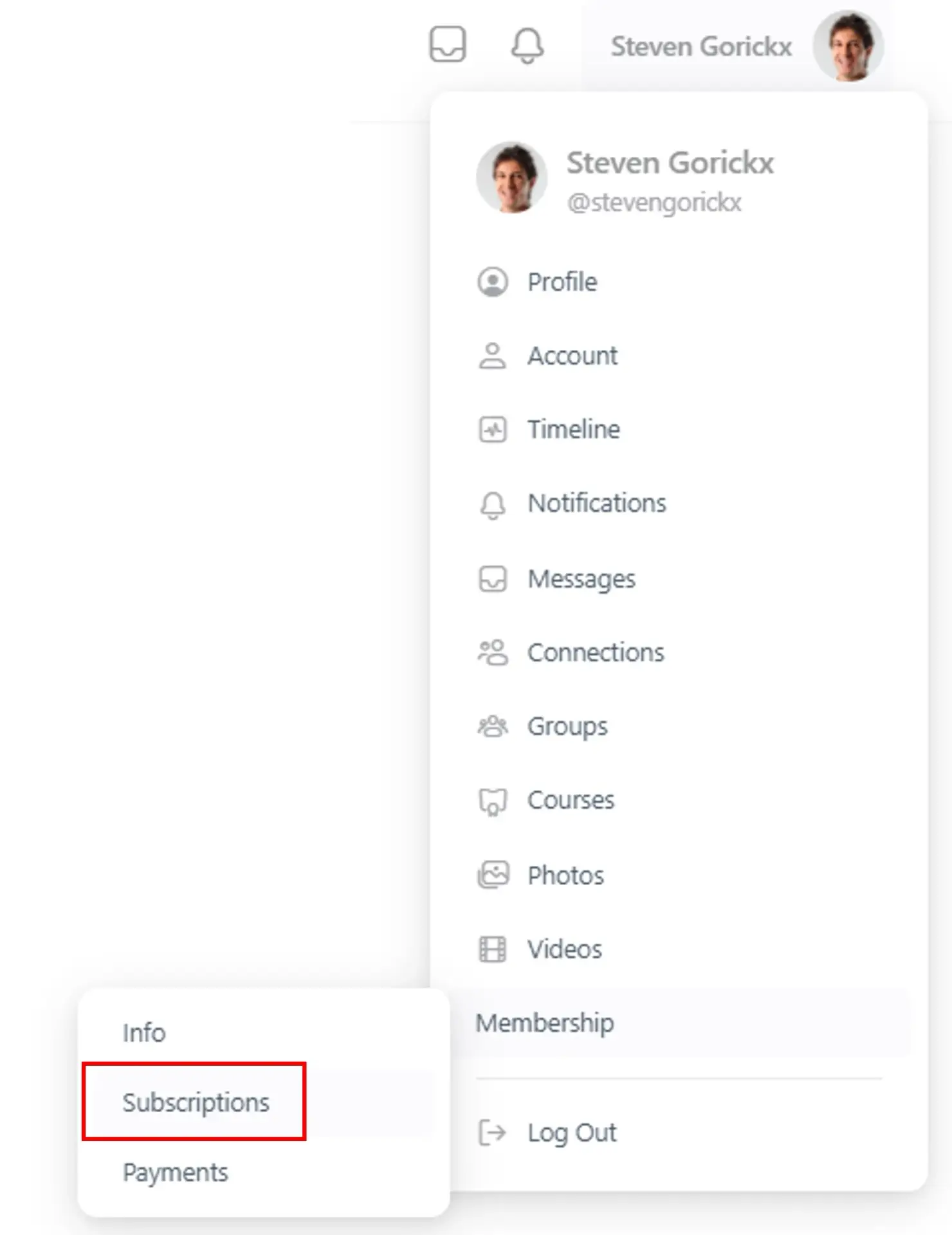
- You’ll now see your subscriptions, including the one for the TeamChallenge.
- In the last column, click Sub Accounts.

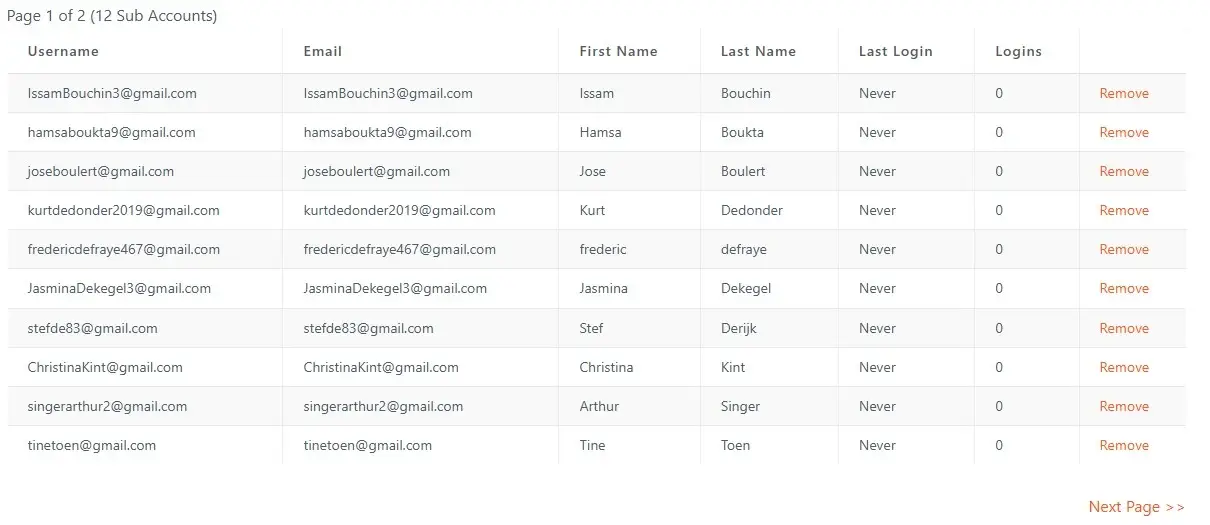
- This opens the management page for your Primary Account.
- You can add Subaccounts in several ways: individually, via a registration link or by uploading a participant list (explained below).
- Scroll down and choose the third option: Import Sub Accounts via CSV.
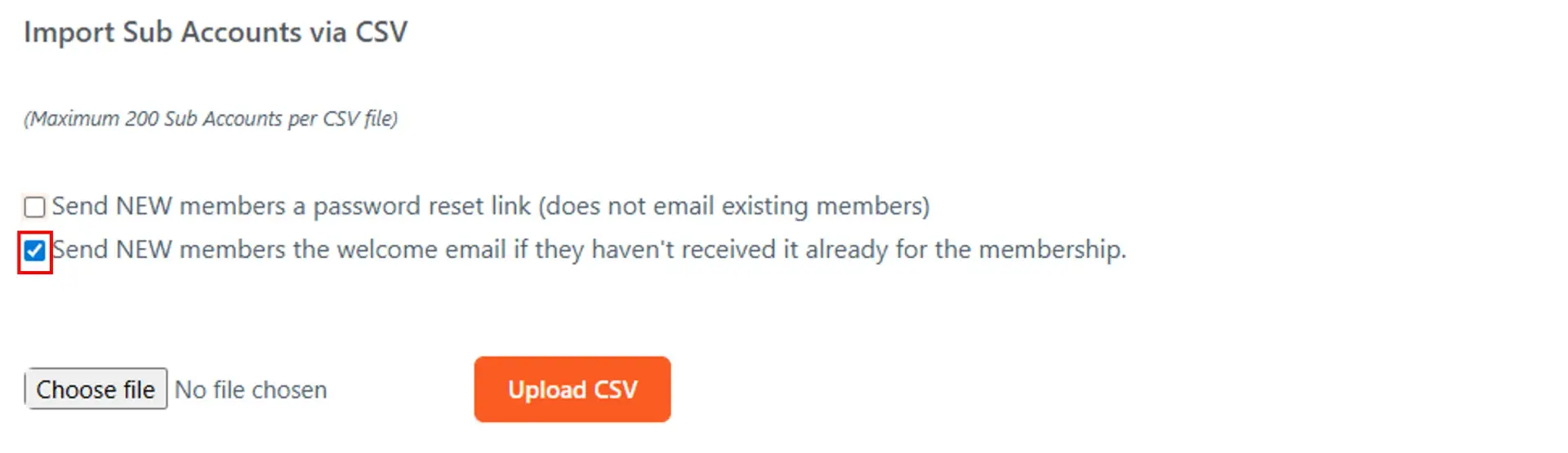
- Tick only the second email option.
- Click Choose file and select your participant file.
- Click Upload CSV.
- Upload time depends on the size of your list. If everything goes smoothly, a confirmation message will appear.

Note: Special characters or accents in names may cause errors. If this happens, adjust the affected letters and retry the upload for that specific name only.
Your team members will automatically receive a welcome email prompting them to set their password. Once that’s done, they can immediately begin the challenge.
- From your management page, you can easily view your Primary Account and add or remove Subaccounts as needed.
Create groups
To track participant progress and strengthen team spirit, it’s best to create a social group within our private community. Want to spark some friendly competition between teams? Simply create multiple groups!
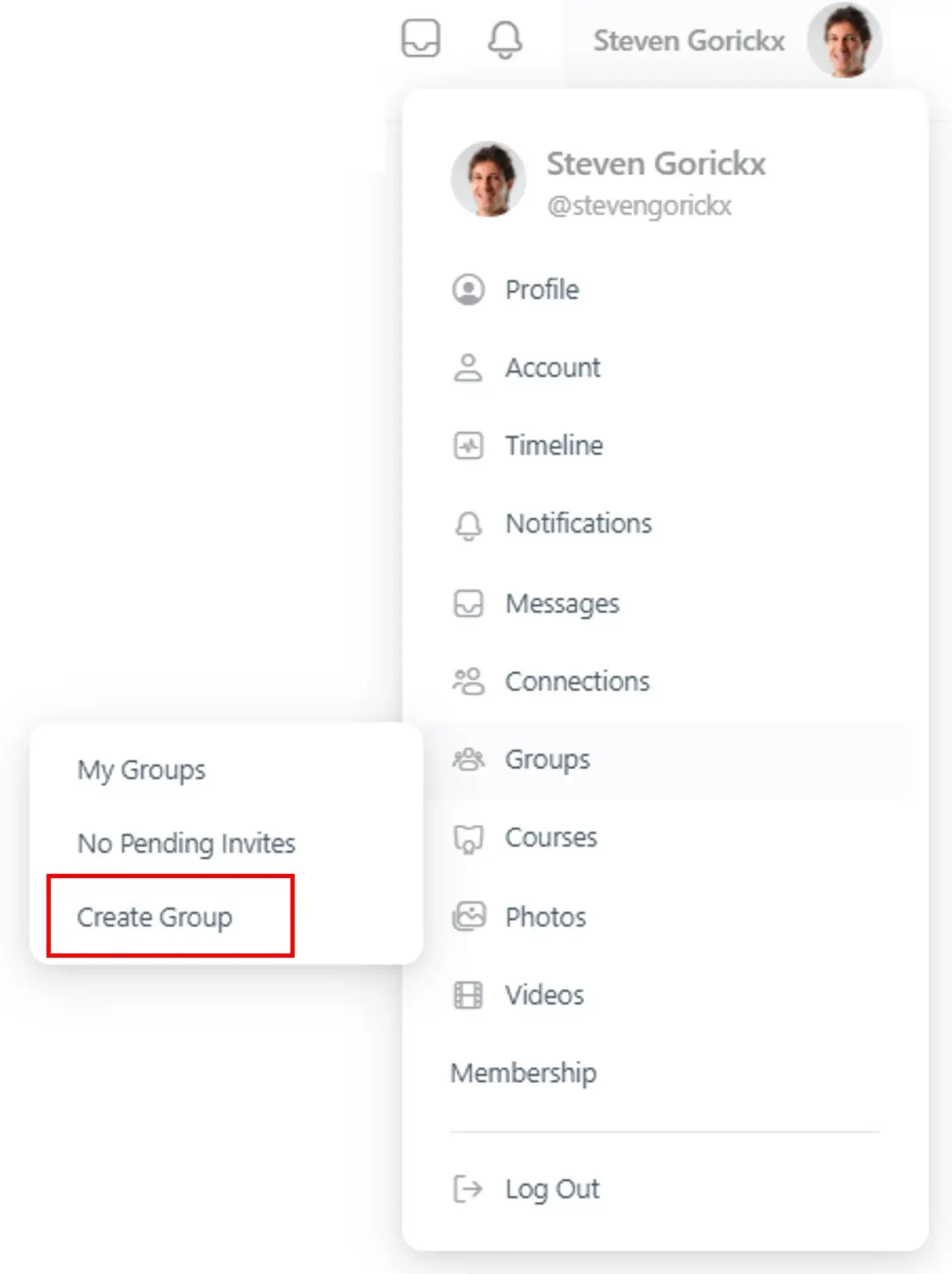
- Click your Profile Name in the menu.
- Select Groups > Create Group.
- The group creation screen will open.
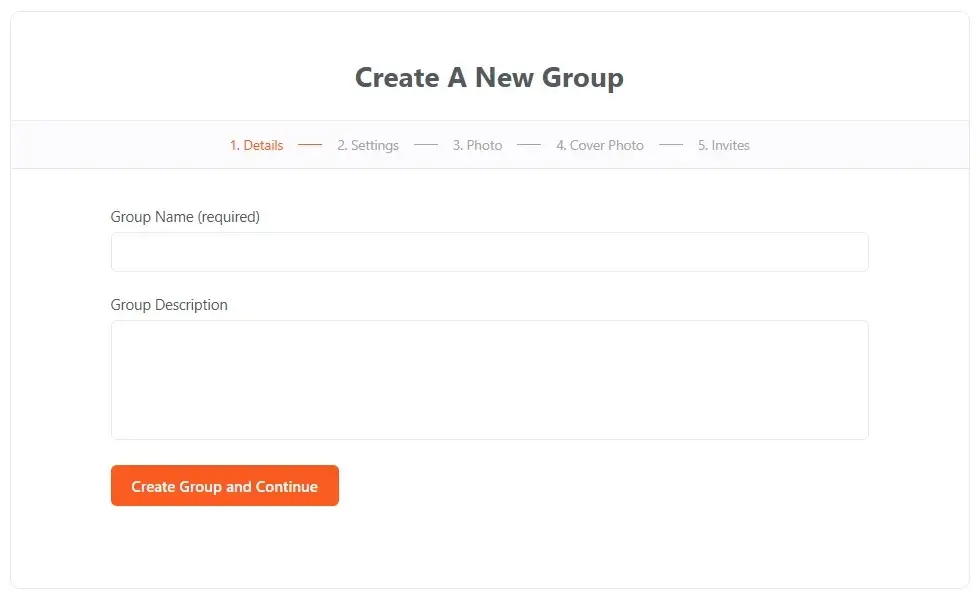
- Give your group a name, then click Create Group and Continue.
- Adjust the following settings to stay in control:
- Privacy Options: set to This is a private group.
- Group Invitations: set to Organizers and Moderators Only.
- Leave the rest of the settings as they are.
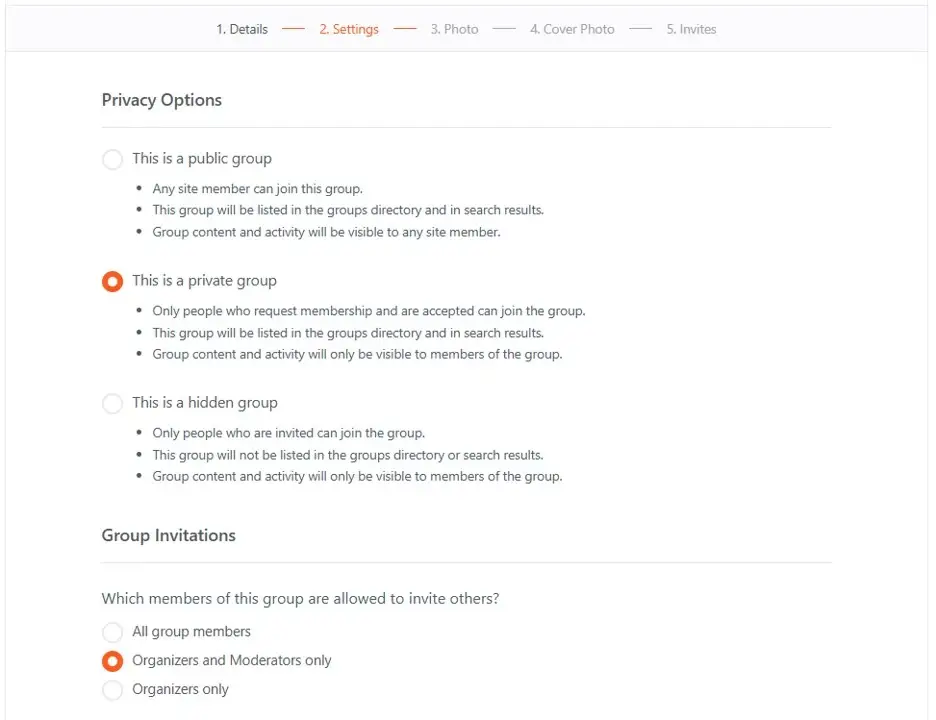
- Click Next Step.
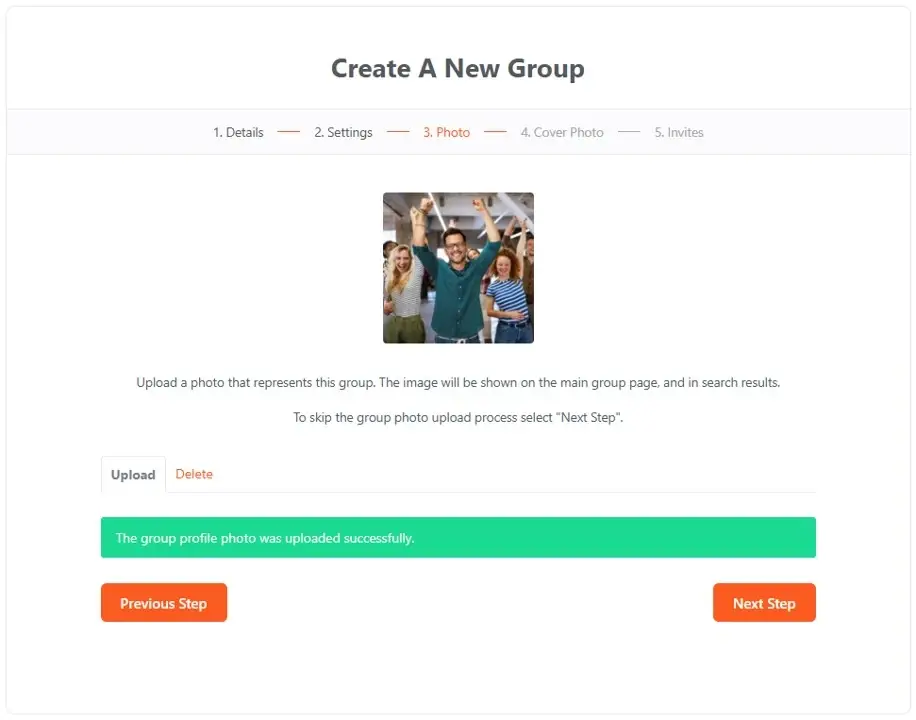
- Upload a Profile Photo, then click Next Step.
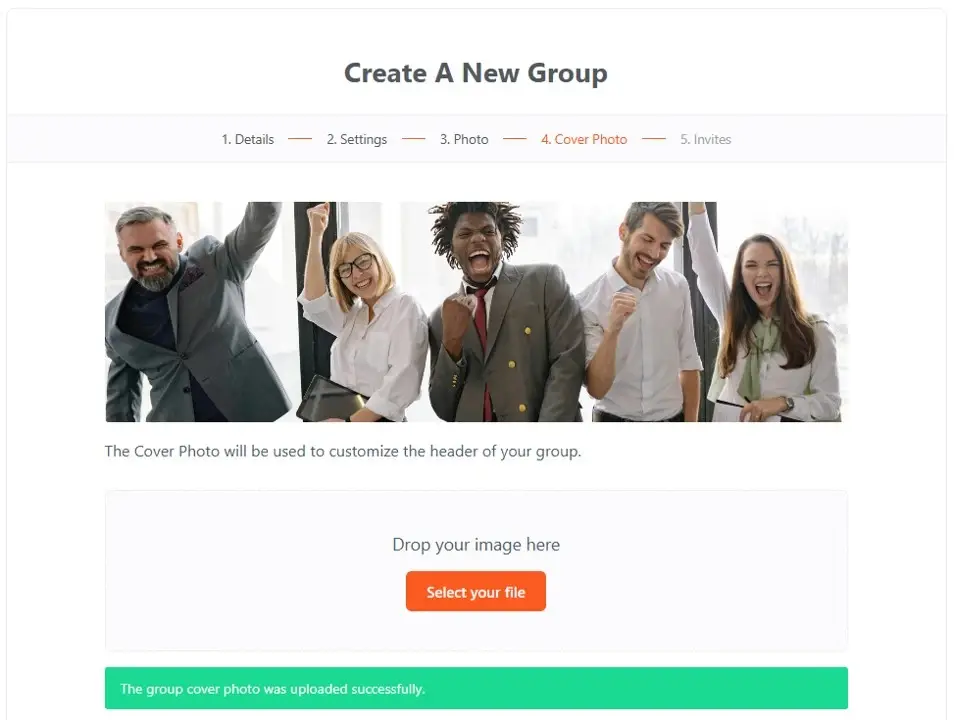
- Upload a Cover Photo, then click Next Step.
- Within the Invites section, you can easily invite participants to become members of your group.
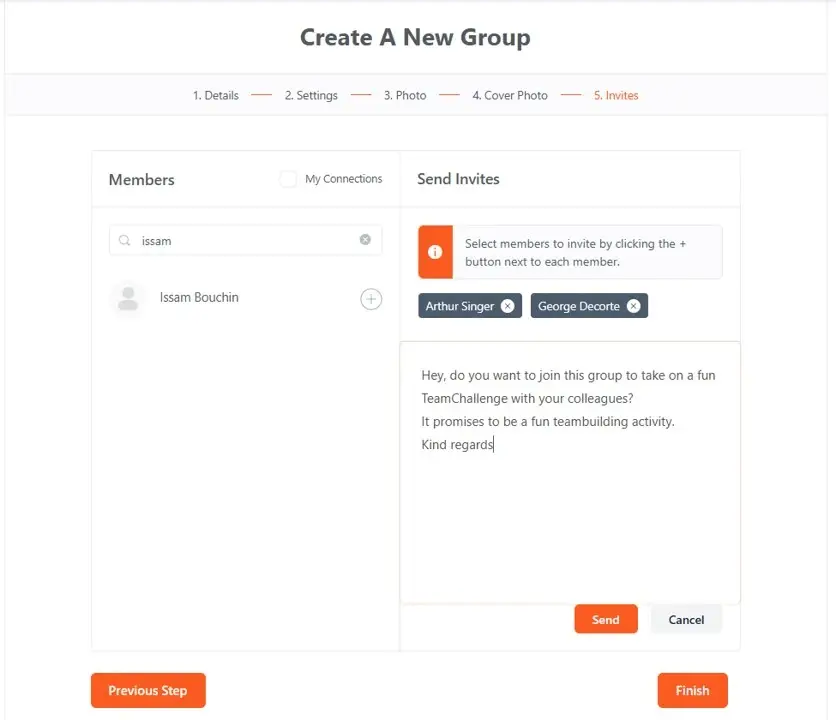
- In the Invites section, select team members from the list using the + button.
- Add a personal message and click Send.
- Finish by clicking Finish.
Repeat these steps for each group you’d like to create!
Important notes
- Participants only become group members once they’ve accepted the invitation.
- Be proactive: inform them in advance and encourage them to accept the invite promptly.
- To do so, they must log in and accept the invitation from their profile page.
Leaderboard
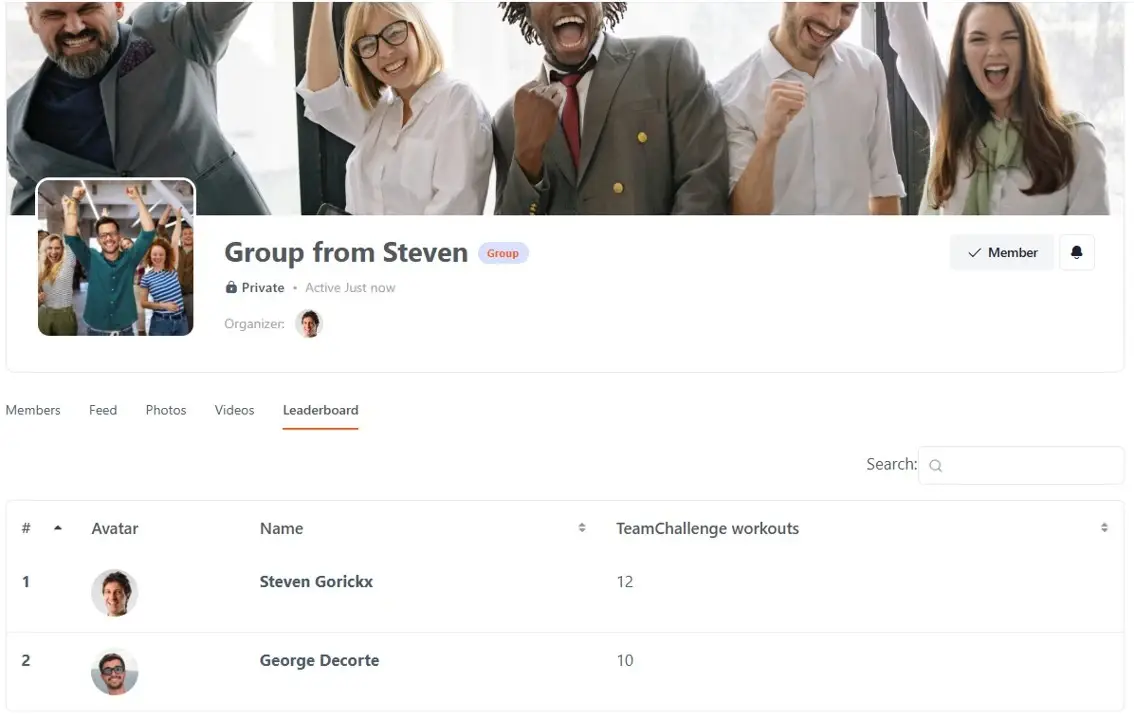
Through the leaderboard, you can view the progress of team members within each group.
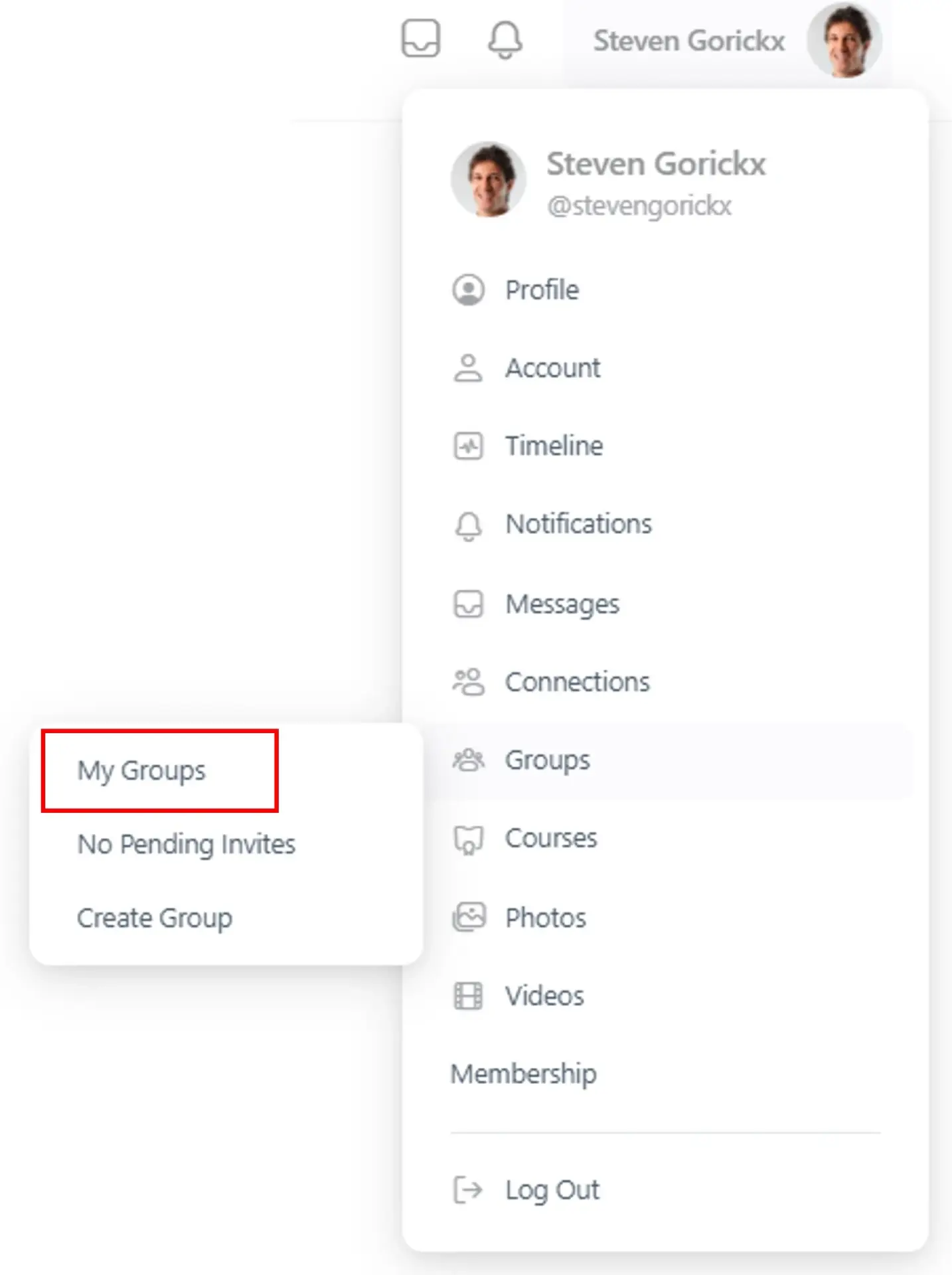
- Click on your Profile Name in the menu and select Groups/My Groups.
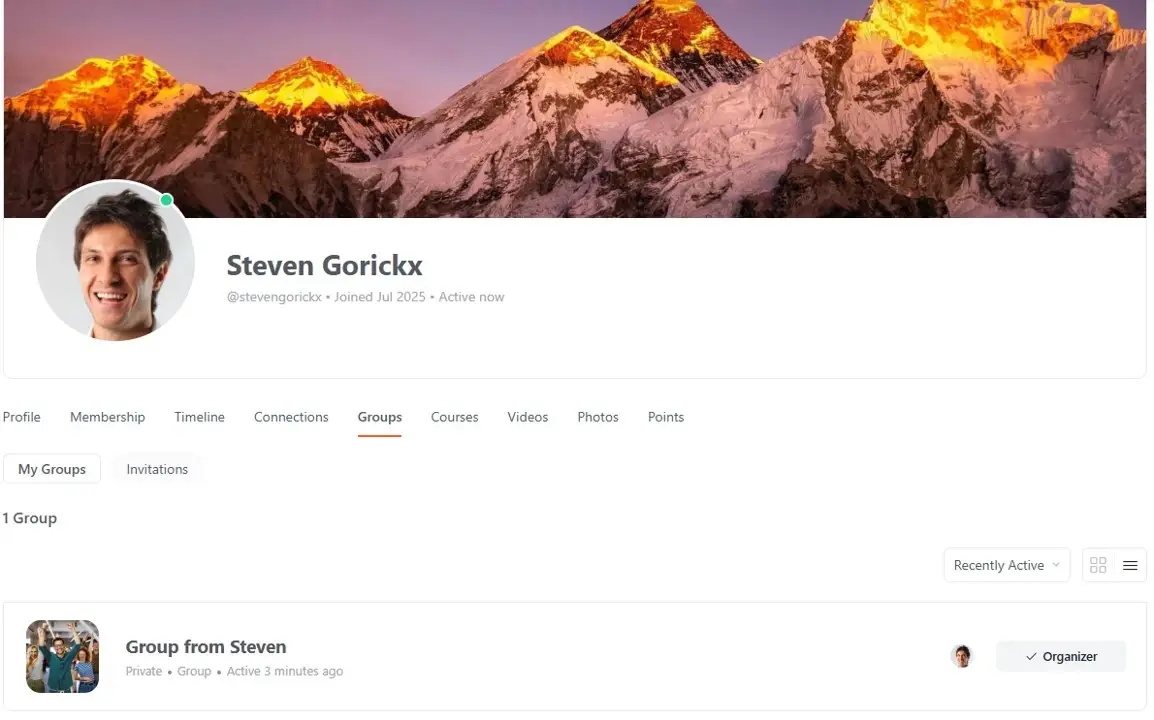
- At the bottom of your profile page, click on the group name for which you want to view participant scores.
- On the group page, you’ll find a Leaderboard tab showing the ranking of team members, including yourself.
Invest in a motivating work environment!
- Get your employees moving by encouraging them to share fun workout photos or videos.
- Highlight sporty teams and participants through internal communication and let their dedication shine.
- Showcase your organization’s commitment to health and well-being at work via social media.
- Make health a lasting story: after the challenge, choose a flexible Group Subscription and continue supporting your team, day in and day out.
Need help?
Fill in the form and we’ll get back to you as soon as possible.
[contact-form-7 id=”59f0252″ title=”Contact TeamChallenge”]